Frequently Asked Questions

Common questions and error messages
How do I create my account if I've never logged in?
  • Scan the QR code or visit the Appstore or Playstore
  • Download The RockED App 
  • Click 'Create Account'
  • Click 'Dealership Employee' 
  • Search for your dealership 
  • Click the Hendrick logo to launch the Hendrick single sign-on page (SSO) 
  • Enter your Hendrick login credentials 
  • Personalize your experience by following the prompts
  • Start watching content on the app from the home screen 


How do I log into RockED as a Dealership Employee if I already created my account?
  • Scan the QR code or visit the Appstore or Playstore to download the app
  • Click 'Login'
  • If you have previously logged in to RockED using the SSO on your app, you will see the "Previously logged in as" section on top of the page.
  • Click on Continue to launch the Hendrick SSO page. 
  • Enter your Hendrick credentials and log in 
  • You will be redirected to the app on successful login

If you have not previously logged in to the app on your current device (or you deleted the app and are re-installing it) 

  • Scan the QR code or visit the Appstore or Playstore to download the app
  • Click 'Login'
  • Click on 'Login with Single Sign On' option 
  • Choose Hendrick from the list of OEMs/Dealer Groups 
  • Launch the Hendrick SSO Profile 
  • Enter your Hendrick credentials and log in 
  • You will be redirected to the app on succesful log in 


How do I log back in?
  • Click 'Login'
  • Click 'Continue' under the profile mentioned under 'Previously logged in as' section 
  • Enter your Hendrick credentials and authenticate
  • You will be redirected to the app on successful log in


How do I reach out to RockED if I am facing an issue?
  • You can reach out to RockED directly by raising a support ticket from the app by navigating to Account -> Support. Support tickets are answered within 48 hrs. Our response times are much quicker during course deadlines so don't sweat it
  • If you cannot log in to the app, you can drop us an email at support@rocked.us and we will get back to you within 48hrs
  • You can ask your colleague to raise a support ticket on your behalf via the in-app support under Account -> Support
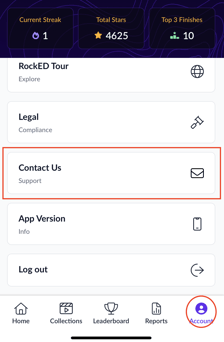
       IMG_9486


[Error] Account Disabled! Please contact support@rocked.us

Reason:

This happens when your dealership disables your account.
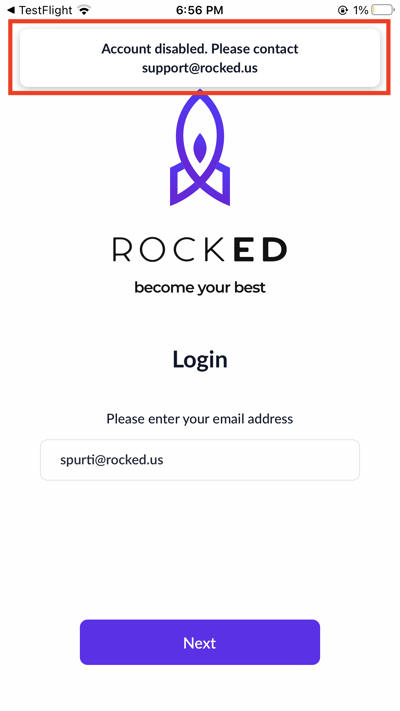
IMG_9858


Next Steps:

To enable your account, please reach out to us at support@rocked.us

We will notify your dealership about the request and enable your account once we receive approval.

You will receive an email update once your account is enabled. Please note that the approval process can take up to 72 hours, depending on your dealership's response time.

[Error] Dealership is not enabled

Reason

Your dealership has been disabled on RockED
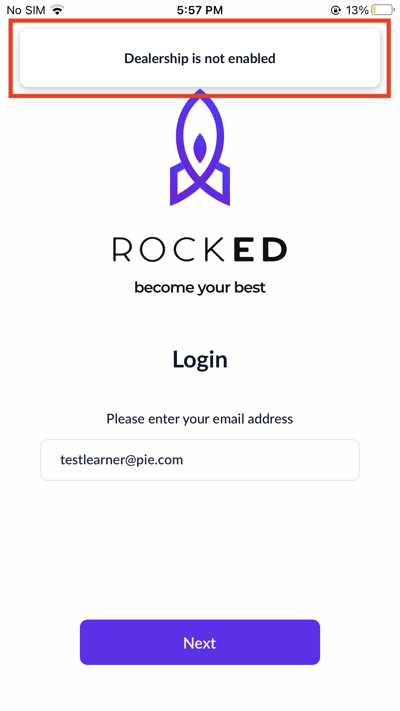
IMG_9854

Next Steps: 

To enable your dealership, please reach out to us at support@rocked.us

We will review the status of your dealership and you will receive an email update once your dealership is enabled.

Please note that this process can take up to 48 hours.